Build an ESP32 voice assistant for Home Assistant, with local or AI answers
An ESP32-S3, a $3 microphone and a small amplifier make a smart speaker that listens for "Okay Nabu" on the device itself and talks to Home Assistant's Assist. Keep everything local and private, or hand the conversation to an AI model like ChatGPT, Claude, Gemini or a local Ollama model, so you can ask real questions and not just switch lights.
- Cost
- $15–25
- Time
- 1–2 hours
- Difficulty
- Intermediate
- Skills
- Jumper wiring, Home Assistant setup
How voice works in Home Assistant
A spoken command goes through four steps, and you choose who handles each one:
- Wake word: the ESP32 listens for "Okay Nabu" itself, using ESPHome's microWakeWord. Nothing leaves the device until it hears it.
- Speech to text: your words are turned into text, either locally (Whisper or Speech-to-Phrase) or in the cloud.
- Conversation agent: something decides what you meant and what to do. Home Assistant's built-in agent handles commands like "turn off the kitchen lights". An AI agent can also answer questions and understand looser phrasing.
- Text to speech: the reply is turned back into speech, locally with Piper or in the cloud, and played on the speaker.
Home Assistant calls this chain a voice assistant pipeline. You can have several and switch between them per device.
Choose the brain
| Setup | Good at | Trade-off |
|---|---|---|
| Fully local: Speech-to-Phrase or Whisper, built-in agent, Piper | Private, free, works with the internet down | Only understands home-control phrases. Whisper needs a reasonably fast machine. |
| Home Assistant Cloud for speech, built-in agent | Fast, accurate speech on any Home Assistant hardware | Monthly subscription; audio goes to the cloud |
| AI agent: OpenAI, Anthropic, Google or Ollama | Answers questions, follows loose phrasing, has a personality | Slower; cloud models cost per use and see your requests. Ollama needs a strong local machine. |
A good mix: AI agent with Prefer handling commands locally turned on. Simple commands like "lights off" are handled instantly by Home Assistant, and only everything else goes to the AI.
Parts
- An ESP32-S3 board with PSRAM, such as an ESP32-S3-DevKitC-1 N16R8 (16 MB flash, 8 MB PSRAM). A classic ESP32 can't run the on-device wake word well; the S3 is the right chip.
- An INMP441 I2S microphone board.
- A MAX98357A I2S amplifier board.
- A small 4–8 Ω speaker, 3 W or so.
- Jumper wires, a 5 V USB power supply and an enclosure with holes for the mic and speaker.
- ESP32-S3 DevKitC-1 N16R8 (with PSRAM)Illustration
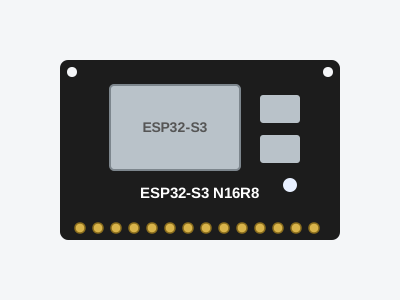
- INMP441 I2S microphoneIllustration
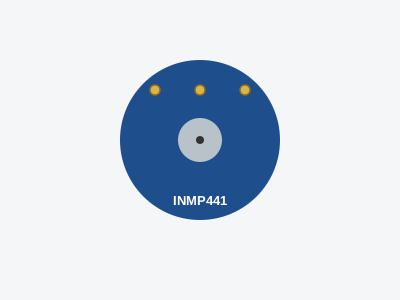
- MAX98357A I2S amplifierIllustration
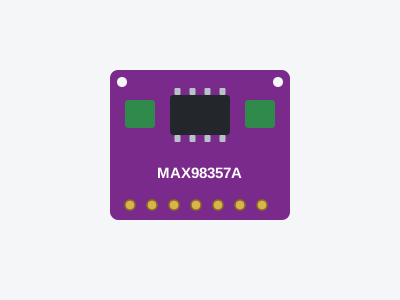
- 3 W 4–8 Ω speakerIllustration
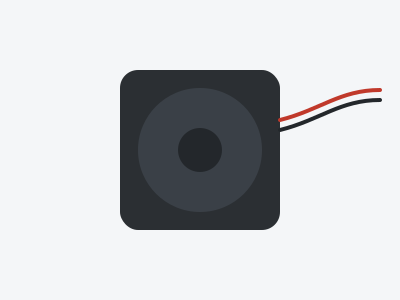
- Female-to-female jumper wiresView on AmazonPhoto: oomlout, CC BY-SA 2.0

- 5 V USB power supplyView on AmazonPhoto: Сергей Михель, CC BY-SA 3.0

- Plastic project enclosureIllustration

Want it ready-made? Home Assistant sells its own Voice Preview Edition with a better microphone array and speaker. This build is cheaper and teaches you how the pieces fit, and the setup in Home Assistant is the same.
Wiring
| Board | Pin | ESP32-S3 |
|---|---|---|
| INMP441 mic | VDD / GND | 3.3V / GND |
| WS / SCK / SD | GPIO4 / GPIO5 / GPIO8 | |
| L/R | GND (left channel) | |
| MAX98357A amp | VIN / GND | 5V / GND |
| LRC / BCLK / DIN | GPIO6 / GPIO7 / GPIO9 | |
| GAIN / SD | Leave unconnected (9 dB gain, amp on) | |
| Speaker | + / − | Amp's + and − screw terminals |
The mic and the amp each get their own I2S bus, so the speaker can play while the microphone keeps listening. Keep the mic away from the speaker and point its hole at the room; most false wake-ups and echo problems come from them sitting too close together.
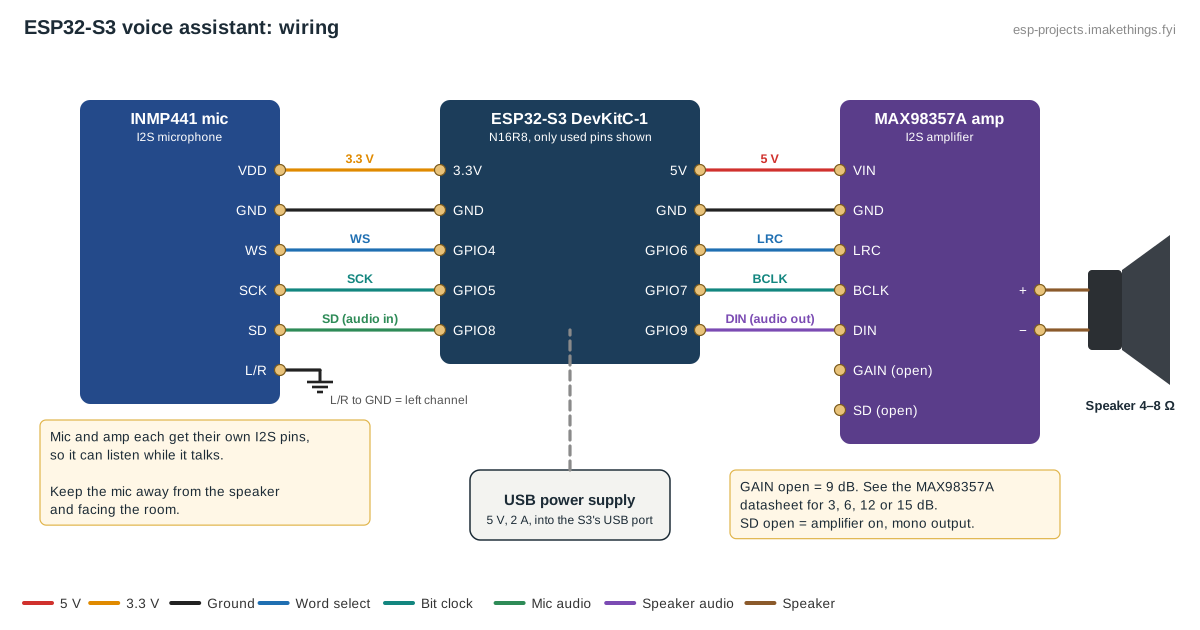
The ESPHome config
Add your usual esphome, wifi, api and ota blocks. The board block matters here: the S3 needs PSRAM turned on and the ESP-IDF framework.
esp32:
  board: esp32-s3-devkitc-1
  flash_size: 16MB
  framework:
    type: esp-idf

psram:
  mode: octal
  speed: 80MHz

i2s_audio:
  - id: i2s_mic
    i2s_lrclk_pin: GPIO4
    i2s_bclk_pin: GPIO5
  - id: i2s_spk
    i2s_lrclk_pin: GPIO6
    i2s_bclk_pin: GPIO7

microphone:
  - platform: i2s_audio
    id: mic
    i2s_audio_id: i2s_mic
    i2s_din_pin: GPIO8
    adc_type: external
    pdm: false
    channel: left
    bits_per_sample: 32bit
    sample_rate: 16000

speaker:
  - platform: i2s_audio
    id: spk
    i2s_audio_id: i2s_spk
    i2s_dout_pin: GPIO9
    dac_type: external
    channel: mono
    sample_rate: 16000

micro_wake_word:
  id: mww
  microphone: mic
  vad:
  models:
    - model: okay_nabu
  on_wake_word_detected:
    - voice_assistant.start:
        wake_word: !lambda return wake_word;

voice_assistant:
  id: va
  microphone: mic
  speaker: spk
  micro_wake_word: mww
  noise_suppression_level: 2
  auto_gain: 31dBFS
  volume_multiplier: 2.0
  on_end:
    - wait_until:
        not:
          speaker.is_playing: spk
    - micro_wake_word.start:

light:
  - platform: esp32_rmt_led_strip
    id: status_led
    name: "Status light"
    pin: GPIO48
    num_leds: 1
    channel_colors: GRB
    chipset: WS2812
Other wake words are available: swap okay_nabu for hey_jarvis or hey_mycroft. The vad line adds a voice activity check that cuts false wake-ups from TV and music. The status light is the DevKitC's built-in RGB LED; on version 1.1 boards it's on GPIO38 instead of GPIO48.
Set it up in Home Assistant
- Flash the config over USB. Home Assistant finds the device; adopt it under Settings → Devices & services.
- Go to Settings → Voice assistants and open your assistant, or add one. Choose the speech-to-text, conversation agent and text-to-speech you picked above.
- For a fully local setup, install the Speech-to-Phrase (or Whisper) and Piper add-ons first; they then show up as choices.
- On the device's page, choose which assistant it uses.
- Say "Okay Nabu, what time is it?" The status light and a short reply tell you it's working.
Add an AI agent
- Add the integration for your AI: OpenAI, Anthropic, Google Generative AI or Ollama for a local model. Cloud services need an API key and charge per use.
- In the agent's options, give it a prompt describing how it should talk, and set control to Assist so it can operate your devices.
- In your voice assistant, set the conversation agent to the AI and turn on Prefer handling commands locally.
- Under Settings → Voice assistants → Expose, expose only the devices you actually want to control by voice, with clear names and areas. A short, well-named list makes any AI, and especially a small local one, far more reliable.
An AI agent with control can unlock doors and open garage doors if you expose them. Keep locks, alarms and garage doors unexposed, or require a confirmation automation for them.
Tune it
- Doesn't hear you from across the room: raise
auto_gaintoward 31 dBFS (it already is) and addgain_factorunder the wake word's microphone, or move the mic higher and away from walls. - Wakes up on its own: keep
vadon, lower the noise, or set a higherprobability_cutoffon the model. - Replies too quiet or distorted: adjust
volume_multiplier, or wire the amp's GAIN pin for 12 or 15 dB (see the MAX98357A datasheet). Distortion usually means too much gain for the speaker. - Slow answers: time each step in Settings → Voice assistants → Debug. Local Whisper on a Raspberry Pi is often the slow part; Speech-to-Phrase or Home Assistant Cloud is much faster.
Privacy
The wake word runs on the ESP32, so nothing is sent anywhere until it hears it. After that, what happens to your voice depends on the pipeline: a fully local one never leaves your network, while cloud speech and AI agents send the audio or text to that provider. You can mix: local speech-to-text with a cloud AI only sends text, never your voice.
Troubleshooting
| Symptom | Likely cause and fix |
|---|---|
| Never reacts to the wake word | Mic pins swapped or L/R not tied to GND. Check the log for audio levels while you speak. |
| Wakes up but replies are silent | Amp wiring or the speaker pins. Check DIN on GPIO9 and that the amp gets 5 V, not 3.3 V. |
| Build fails or the device reboots | PSRAM off or the wrong board. Use an S3 with PSRAM and keep the psram block. |
| Understands commands but not questions | The built-in agent only does home control. Add an AI conversation agent. |
| AI says it can't control devices | Set its control option to Assist and expose those devices to Assist. |